ConstraintLayout
从Android API 9以后Google推出了ConstraintLayout,而且从Android Studio 2.3 起,默认布局就是ConstraintLayout。
1、ConstraintLayout
主要是为了解决布局嵌套过多的问题,以灵活的方式定位和调整小部件。RelativeLayout 也可以解决多层嵌套问题,但是ConstraintLayout更加灵活,性能更加出色。ConstraintLayout布局非常有利于可视化编程,各种拖拽操作。ConstraintLayout 的所有功能均可直接通过布局编辑器的可视化工具来使用,因为布局 API 和布局编辑器是专为彼此构建的。参考Google官方文档使用布局编辑器构建界面
要使用ConstraintLayout首先在build.gradle中添加依赖:
//2020年03月01日 最新版本1.1.3
    implementation 'androidx.constraintlayout:constraintlayout:1.1.3'
2、ConstraintLayout属性
了解一下基本属性。
2.1、相对位置约束
位置约束一共有13个。View如果仅用相对位置约束,那么需要同时约束Horizontal和Vertical两个方向,否则会提示错误。
layout_constraintLeft_toLeftOf
layout_constraintLeft_toRightOf
layout_constraintRight_toLeftOf
layout_constraintRight_toRightOf
layout_constraintTop_toTopOf
layout_constraintTop_toBottomOf
layout_constraintBottom_toTopOf
layout_constraintBottom_toBottomOf
layout_constraintBaseline_toBaselineOf
layout_constraintStart_toEndOf
layout_constraintStart_toStartOf
layout_constraintEnd_toStartOf
layout_constraintEnd_toEndOf
这些属性的取值reference或enum类型。其它View的id,或唯一的枚举类型parent。看看其中一个属性的定义如下,即可明白
<attr format="reference|enum" name="layout_constraintLeft_toLeftOf">
        <enum name="parent" value="0"/>
    </attr>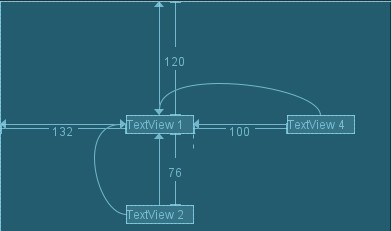
2.2、角度方位约束
用一个角度和一个距离来约束两个空间的中心。
layout_constraintCircle(reference)目标控件 ID
layout_constraintCircleAngle(integer)和目标控件的角度
layout_constraintCircleRadius(dimension)该控件中心 距离目标控件中心的距离。
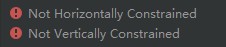
只使用这三个属性就可以定位一个View的位置。虽然AndroidStudio还提示错误。
<?xml version="1.0" encoding="utf-8"?>
<androidx.constraintlayout.widget.ConstraintLayout
    android:layout_width="match_parent"
    android:layout_height="match_parent">

    <TextView
        android:id="@+id/text_view_1"
        android:layout_width="wrap_content"
        android:layout_height="wrap_content"
        android:text="TextView 1"
        app:layout_constraintLeft_toLeftOf="parent"
        app:layout_constraintTop_toTopOf="parent" />

    <TextView
        android:id="@+id/text_view_2"
        android:layout_width="wrap_content"
        android:layout_height="wrap_content"
        android:text="TextView 2"
        app:layout_constraintCircle="@id/text_view_1"
        app:layout_constraintCircleAngle="150"
        app:layout_constraintCircleRadius="200dp" />
</androidx.constraintlayout.widget.ConstraintLayout>
2.3、绝对位置 *
在布局中写死控件所在的绝对位置
layout_editor_absoluteX(dimension)
layout_editor_absoluteY(dimension)
这些属性在实际运行时并不生效,但是在写布局的时候AndroidStudio预览显示是正确的。
2.4、边距Margin约束
和之前写LinearLayout布局一样,边距margin边距仍然用这些属性控制。必须先约束该控件在ConstraintLayout里的相对位置,边距才能生效。且margin边距只能为正,不能为负。
android:layout_marginStart
android:layout_marginEnd
android:layout_marginLeft
android:layout_marginTop
android:layout_marginRight
android:layout_marginBottom
2.5、goneMargin边距
当用于约束的控件visibility被设置为gone的时候使用的margin值
layout_goneMarginStart
layout_goneMarginEnd
layout_goneMarginLeft
layout_goneMarginTop
layout_goneMarginRight
layout_goneMarginBottom
这是TextView1可见时,TextView2相对TextView1的约束,使用普通的layout_marginTop和layout_marginStart
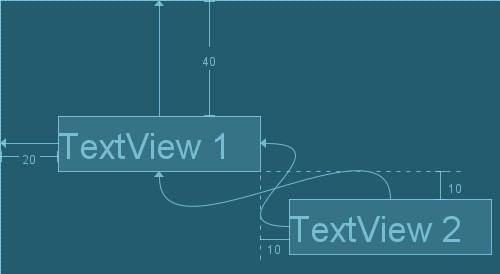
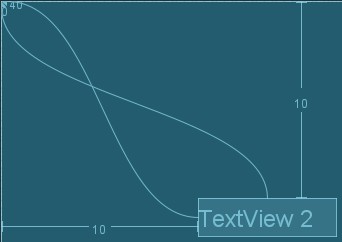
当用来约束的View设置为gone不可见时,使用goneMargin属性设定的margin值。
2.6、居中
居中:
RelativeLayout中,把控件放在布局中间的方法是把layout_centerInParent设为true。在约束布局中添加上下左右四个对齐约束:
app:layout_constraintBottom_toBottomOf="parent"
        app:layout_constraintLeft_toLeftOf="parent"
        app:layout_constraintRight_toRightOf="parent"
        app:layout_constraintTop_toTopOf="parent"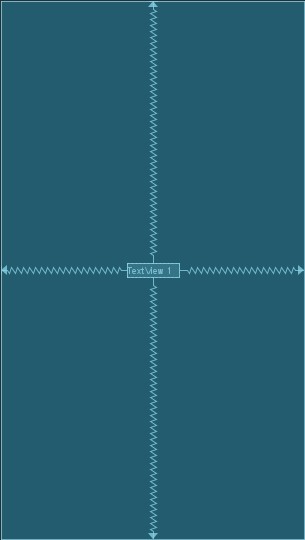
水平居中:
左右拉齐
app:layout_constraintLeft_toLeftOf="parent"
    app:layout_constraintRight_toRightOf="parent"
垂直居中:
上下拉齐
app:layout_constraintBottom_toBottomOf="parent"
    app:layout_constraintTop_toTopOf="parent"
2.7、尺寸约束
①固定dp值
②wrap_content
android:minWidth 最小的宽度
android:minHeight 最小的高度
android:maxWidth 最大的宽度
android:maxHeight 最大的高度
③match_content:官方不推荐在ConstraintLayout中使用match_parent
使用0dp和,再配合约束条件约束控件大小。
2.8、宽高比约束
当宽或高至少有一个尺寸被设置为0dp时,可以通过属性layout_constraintDimensionRatio设置宽高比
app:layout_constraintDimensionRatio
app:layout_constraintDimensionRatio="1:1"设置宽高比的值的时候,还可以在前面加W或H,分别指定宽度或高度限制。
//高:宽=2:3
    app:layout_constraintDimensionRatio="H,2:3"
    //宽:高=2:3
    app:layout_constraintDimensionRatio="W,2:3"
2.9、链:chain
水平方向的控件从左到右:parent-view-... ... view-parent
垂直方向的约束从上到下:parent-view-... ...-view-parent
形成一种“无形的”链。
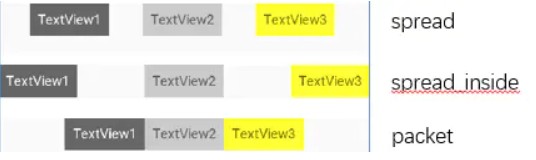
layout_constraintHorizontal_chainStyle来改变整条链的样式。chains提供了3种样式,分别是:
CHAIN_SPREAD —— 展开元素 (默认);
CHAIN_SPREAD_INSIDE —— 展开元素,但链的两端贴近parent;
CHAIN_PACKED —— 链的元素将被打包在一起。
2.10、权重weight
LinearLayout线性布局的时候常常用到weight权重,让控件按比例平分空间。水平方向按照权重分割空间,一定要把layout_width设置为0dp,不能设置为wrap_content,要不然不参与权重的计算瓜分剩余空间。
app:layout_constraintVertical_weight
app:layout_constraintHorizontal_weight
2.11、辅助属性
这些属性是 UI 编辑器用来辅助拖拽布局的,在实际使用过程中可以不用关心它们。布局中使用并不生效,只在布局预览的时候有效。
layout_optimizationLevel
layout_editor_absoluteX
layout_editor_absoluteY
layout_constraintBaseline_creator
layout_constraintTop_creator
layout_constraintRight_creator
layout_constraintLeft_creator
layout_constraintBottom_creator
3、约束工具
3.1、参照线 Guideline
类似盖房子的锤线,作为其它空间的参照。可以设置多个,而不用整个ConstraintLayout都参考第一个View或者只参考Parent。
android:orientation 参照线方向,可以水平horizontal、垂直vertical
app:layout_constraintGuide_begin 垂直距左,水平距上,起始距离
app:layout_constraintGuide_end 垂直距下,水平距右,起始距离
app:layout_constraintGuide_percent 垂直距左,水平距上,距离按比例比例
三者的优先级:percent > begin > end,如果都设置,前者覆盖后者。
举个例子:
<?xml version="1.0" encoding="utf-8"?>
    <androidx.constraintlayout.widget.ConstraintLayout
        xmlns:android="http://schemas.android.com/apk/res/android"
        xmlns:app="http://schemas.android.com/apk/res-auto"
        android:layout_width="match_parent"
        android:layout_height="match_parent">

        <androidx.constraintlayout.widget.Guideline
            android:layout_width="match_parent"
            android:layout_height="match_parent"
            android:orientation="horizontal"
            app:layout_constraintGuide_end="100dp" />

        <androidx.constraintlayout.widget.Guideline
            android:layout_width="match_parent"
            android:layout_height="match_parent"
            android:orientation="horizontal"
            app:layout_constraintGuide_begin="100dp" />

        <androidx.constraintlayout.widget.Guideline
            android:layout_width="match_parent"
            android:layout_height="match_parent"
            android:orientation="vertical"
            app:layout_constraintGuide_percent="0.1" />

        <androidx.constraintlayout.widget.Guideline
            android:layout_width="match_parent"
            android:layout_height="match_parent"
            android:orientation="vertical"
            app:layout_constraintGuide_end="100dp" />

    </androidx.constraintlayout.widget.ConstraintLayout>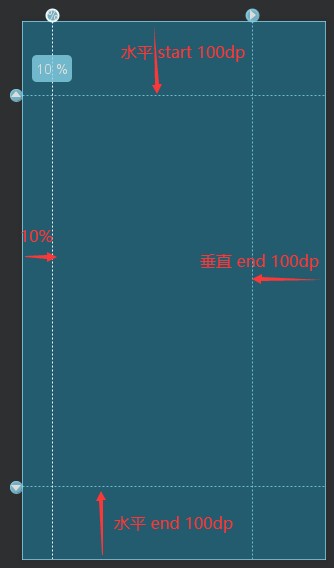
3.2、屏障 Barrier 组件
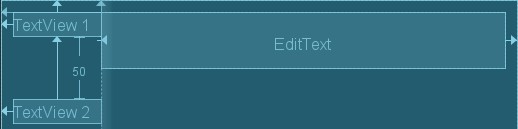
Barrier直译为障碍、屏障。在约束布局中,可以使用属性constraint_referenced_ids属性来引用多个带约束的组件,从而将它们看作一个整体,Barrier 的介入可以完成很多其他布局不能完成的功能。
空间将用Barrier屏障来约束,Barrier屏障中的控件就任由变形。
举个例子:
<androidx.constraintlayout.widget.ConstraintLayout xmlns:android="http://schemas.android.com/apk/res/android"
        xmlns:app="http://schemas.android.com/apk/res-auto"
        android:layout_width="match_parent"
        android:layout_height="match_parent"
        android:padding="10dp">

        <androidx.constraintlayout.widget.Barrier
            android:id="@+id/barrier"
            android:layout_width="wrap_content"
            android:layout_height="wrap_content"
            app:barrierDirection="right"
            app:constraint_referenced_ids="text_view1,text_view2"
            app:layout_constraintLeft_toLeftOf="parent"
            app:layout_constraintTop_toTopOf="parent" />

        <TextView
            android:id="@+id/text_view1"
            android:layout_width="wrap_content"
            android:layout_height="wrap_content"
            android:text="TextView 1"
            app:layout_constraintLeft_toLeftOf="parent"
            app:layout_constraintTop_toTopOf="parent" />
        <TextView
            android:id="@+id/text_view2"
            android:layout_width="wrap_content"
            android:layout_height="wrap_content"
            android:layout_marginTop="50dp"
            android:text="TextView 2"
            app:layout_constraintLeft_toLeftOf="parent"
            app:layout_constraintTop_toBottomOf="@id/text_view1" />

        <EditText
            android:layout_width="0dp"
            android:layout_height="wrap_content"
            app:layout_constraintLeft_toRightOf="@+id/barrier"
            app:layout_constraintRight_toRightOf="parent" />
    </androidx.constraintlayout.widget.ConstraintLayout>
将TextView1和TextView2“放在”Barrier中,用屏障分割左右,希望在右侧的EditText只需要以屏障为约束即可。
3.3、Group 组件
Group可以把多个控件归为一组,方便隐藏或显示一组控件。打打方便的控制界面View的可见性,不需要一个一个去设置。
3.4、占位符 Placeholder
Placeholder中可设置另一个控件的id,使这个控件移动到占位符的位置。
app:content="@+id/id"
还可以在代码中给Placeholder动态设置content内容,将指定View移到Placeholder位置,感觉大有可为!
//将TextView移到placeHolder位置
    placeHolder.setContentId(R.id.text_view);
举个例子:
<androidx.constraintlayout.widget.ConstraintLayout
        xmlns:android="http://schemas.android.com/apk/res/android"
        xmlns:app="http://schemas.android.com/apk/res-auto"
        android:layout_width="match_parent"
        android:layout_height="match_parent">

        <androidx.constraintlayout.widget.Placeholder
            android:id="@+id/place_holder"
            android:layout_width="wrap_content"
            android:layout_height="wrap_content"
            app:content="@+id/text_view"
            app:layout_constraintLeft_toLeftOf="parent"
            app:layout_constraintTop_toTopOf="parent" />

        <!--TextView不会再这里显示,而是显示在Placeholder的位置-->
        <TextView
            android:id="@+id/text_view"
            android:layout_width="wrap_content"
            android:layout_height="wrap_content"
            android:text="TextView"
            app:layout_constraintBottom_toBottomOf="parent"
            app:layout_constraintLeft_toLeftOf="parent" />
    </androidx.constraintlayout.widget.ConstraintLayout>
参考资料: